Documentation · Project setup

Point DevKit at the right Odoo source.

DevKit uses your project structure to connect each custom-addon folder to its matching Odoo core. This lets it resolve the correct version, core models and addon dependencies while you work.

Install Odoo DevKit

The current release supports PyCharm 2026.2 (build 262.*). Get the plugin, start a trial, or view current pricing on JetBrains Marketplace.

  1. Open Settings → Plugins → Marketplace in PyCharm.
  2. Search for Odoo DevKit, select the plugin, and click Install. Restart the IDE if prompted.
  3. Follow the IDE's activation prompts to start a trial or activate your license, then connect your Odoo source using one of the methods below.

Choose one connection method

Both methods work. For most workspaces, open each Odoo core as a project and add its custom addons as content roots. Use a project dependency only when the projects must remain separate.

Alternative

Project dependencies

Keep each Odoo version as its own project and make the custom-addon project depend on the matching Odoo project.

RecommendedContent roots

Open the matching Odoo core as a project. Its folder is already its own content root; you only add the custom-addon folder for that Odoo version.

Settings › Project: <your project> › Project Structure
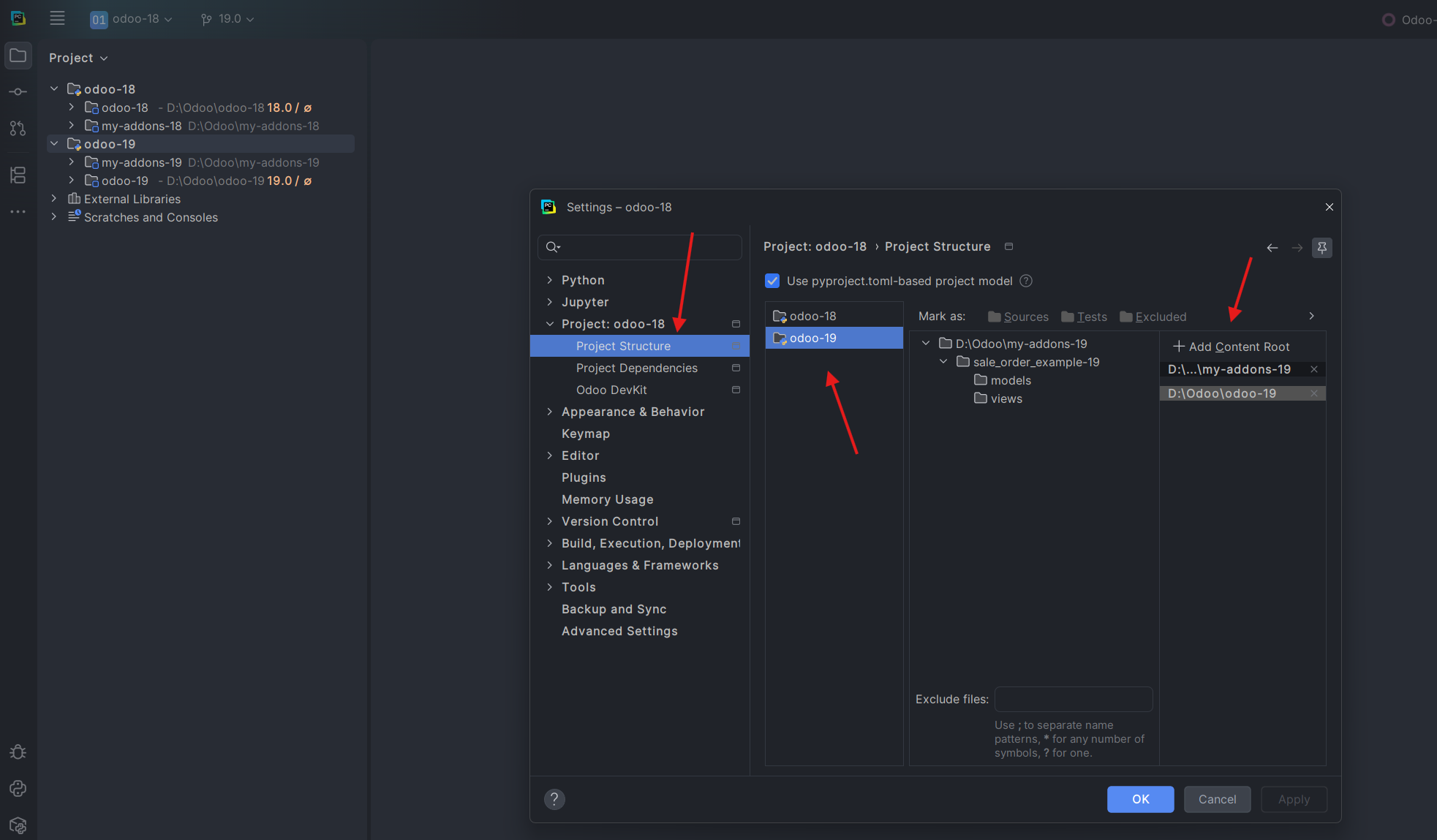
  1. Open the matching Odoo core as a project—for example, D:\Odoo\odoo-19. The core folder is added automatically as that project's content root.
  2. Open Settings → Project Structure, then select that Odoo project from the list.
  3. Click Add Content Root and select its custom-addon folder—for example, D:\Odoo\my-addons-19.
  4. Click Apply or OK and let the IDE finish indexing.
For another version, repeat per core. Open the other Odoo core and choose Attach, then select that project in Project Structure and add only its matching custom-addon folder. Do not add one Odoo core as the content root of another.
Project Structure showing the odoo-19 project and its my-addons-19 content root
Select the Odoo project, then add only the custom-addon directory as its content root.
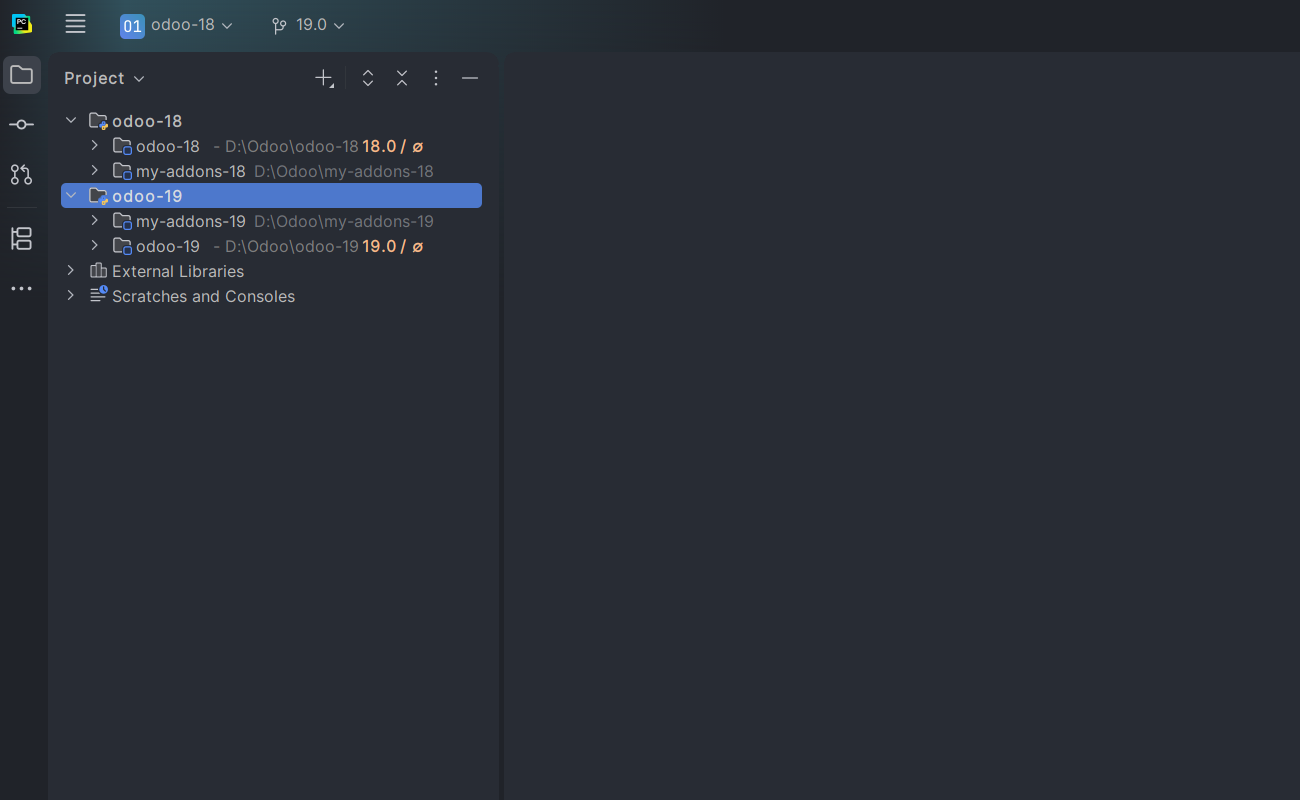
Project view with separate odoo-18 and odoo-19 projects, each with its custom addons
Each attached Odoo version keeps its own core and matching addon folder together.
AlternativeProject dependencies

Use this setup when your custom addons and Odoo source are opened as separate projects. It is useful when a workspace contains several Odoo versions.

Settings › Project: <your project> › Project Dependencies
  1. Open both the custom-addon project and the Odoo source project in the same IDE window.
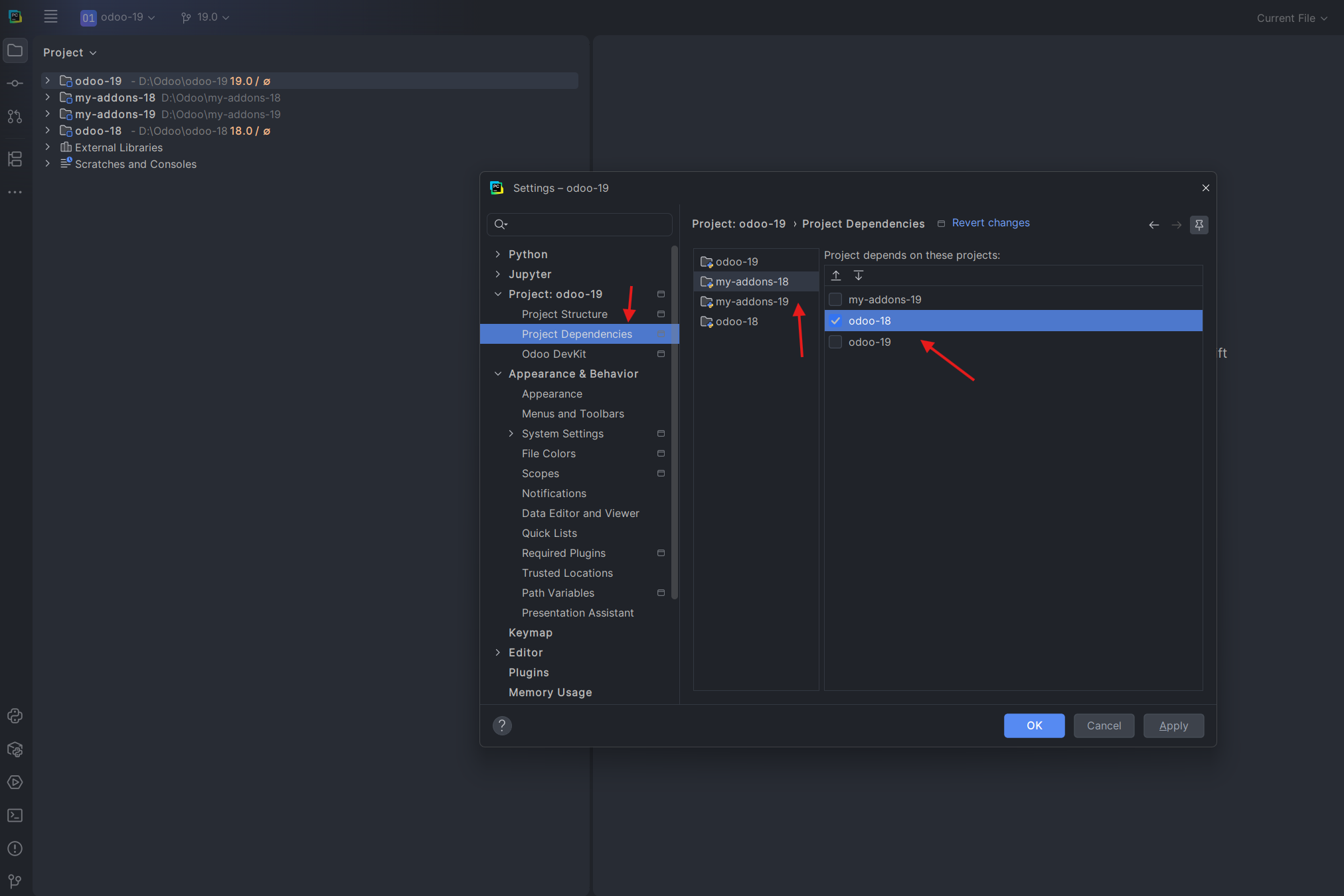
  2. Open Settings, select the custom-addon project, then open Project Dependencies.
  3. Enable the Odoo project that this addon targets—for example, let my-addons-18 depend on odoo-18.
  4. Click Apply or OK and wait for indexing to complete.
One version per dependency. If you work with several Odoo checkouts, connect each custom-addon project only to the checkout it is built for. DevKit then keeps version-specific analysis separate.
Project Dependencies settings showing an addon project linked to an Odoo project
Select the custom-addon project and enable the Odoo project it depends on.
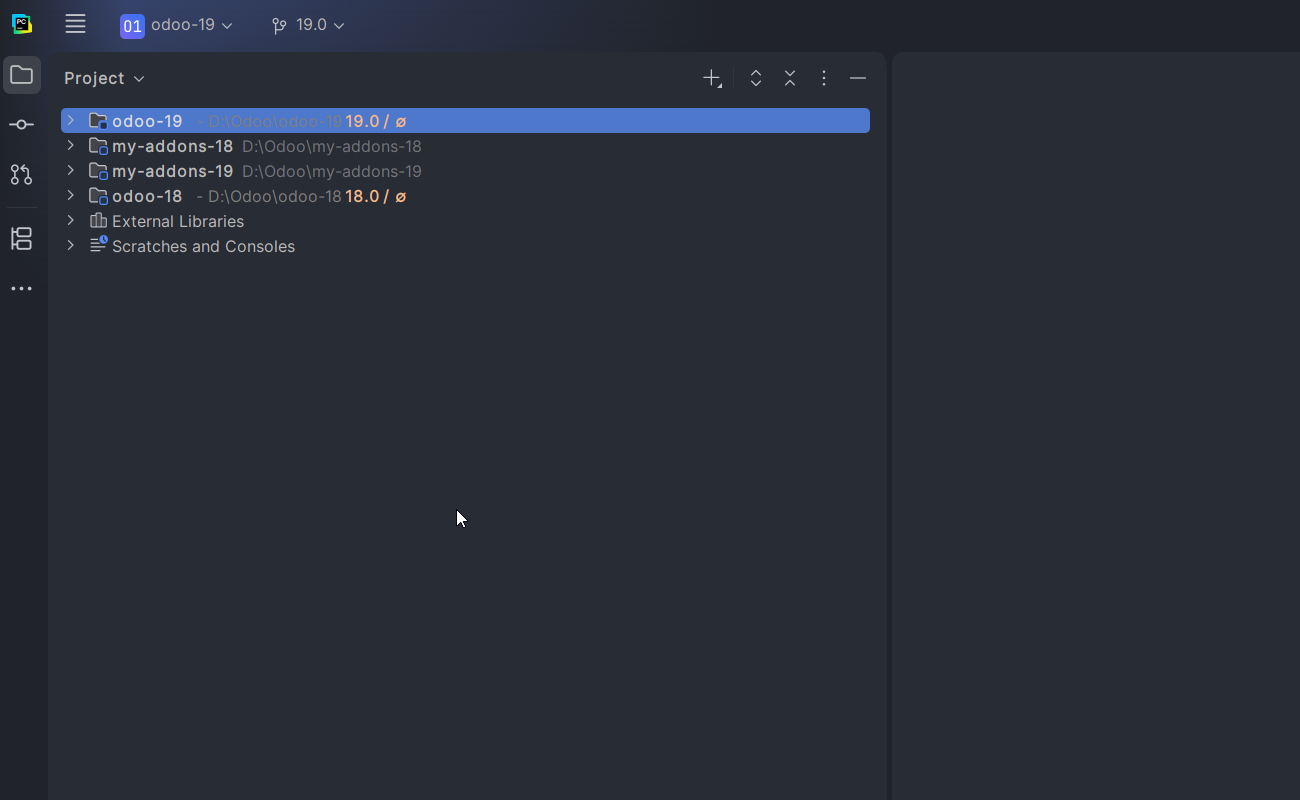
Project view showing Odoo cores and custom-addon projects as separate top-level projects
With dependencies, each core and custom-addon directory remains a separate project.

Check your setup

After the IDE finishes indexing, DevKit should be able to follow the connection from an addon to the intended Odoo source.

One intended checkout

Each addon is linked to the Odoo version it actually runs against.

Launcher is visible

Each Odoo core project includes odoo-bin or setup/odoo.

Indexing is complete

Wait for the IDE before checking completion, navigation or run actions.

Troubleshooting

  • If DevKit cannot find the Odoo source, make sure its core was opened or attached as a project, rather than added under a different Odoo project.
  • If it detects the wrong version, ensure the selected Odoo project has only its matching custom-addon folder as a content root.
  • If a new connection is not recognized immediately, wait for indexing to finish, then reopen the file from the addon.